Why Wont My Controller Connect To My PS4 Common Fixes And Solutions
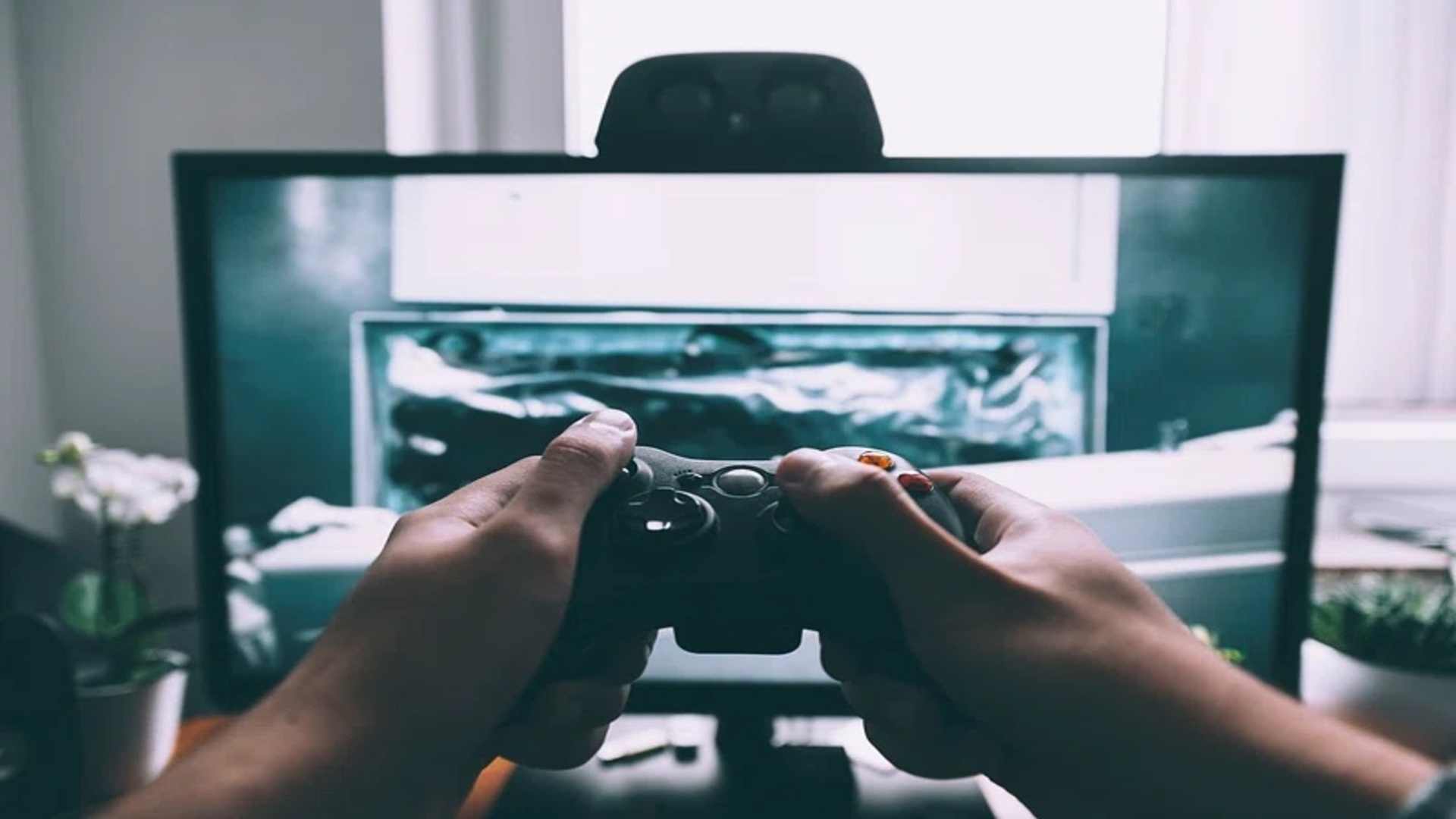
The PlayStation 4 remains an incredibly popular gaming destination for millions of players worldwide, but few things disrupt a gaming session faster than a controller that refuses to pair. When your DualShock 4 flashes a white light or fails to respond completely, it usually points to a temporary software glitch or hardware mismatch. Fortunately, understanding the underlying communication barriers can help you resolve these connection errors quickly without needing a replacement.
Inspecting Your USB Data Cable Integrity
Many players assume that any standard micro-USB cord will work for pairing a controller, but this is a frequent misconception. Standard charging cables often lack the internal data wiring required to establish a secure handshake with the console. To resolve this, you must ensure you are using a dedicated data-syncing cable that facilitates direct system communication.
Furthermore, physical damage inside the port or debris buildup can prevent proper contact even with the correct wire. You can use compressed air to carefully clean out accumulated dust from the controller port and the console sockets. If the light bar simply pulses amber without connecting, swapping to a known working data cable is the most effective first step.
Executing a Hard Hardware Reset
When wireless signals become desynchronized or corrupted, a hardware reset forces the peripheral to clear its memory cache. On the back of the DualShock 4 near the L2 button, you will find a small circular pinhole housing the reset switch. Inserting a straightened paperclip into this opening and holding it down for roughly five seconds will reset the controller configuration entirely.
Once the memory is wiped, connect the controller back to the console using a reliable data wire and press the PS button. This method breaks any faulty loops and forces the hardware to initiate a fresh digital handshake. It serves as a highly reliable fix when the system becomes unresponsive to wireless inputs.
Managing System Bluetooth Connections
If you have access to a secondary working controller or a media remote, navigating the internal settings menu offers a software-based solution. Communication errors frequently occur when too many wireless devices are registered to the same console database. By navigating to the devices menu, you can remove older configurations to free up signal bandwidth.
Select the malfunctioning device from the list, press options, and choose the forget option to clear it from the console database entirely. After clearing the digital footprint, reconnect the controller physically to establish a clean wireless partnership. This strategy resolves hidden signal interference issues that cause sudden in-game disconnections.
Troubleshooting Safe Mode and Power Cycles
Deep system firmware glitches can sometimes freeze the console wireless module, requiring a full power cycle to restore functionality. Shut down your console completely instead of entering rest mode, and unplug the power cord for several minutes. This cuts power to the internal capacitors and forces the operating software to reboot all hardware modules fresh.
If standard syncing methods continue to fail, booting the console into Safe Mode by holding the power button until you hear a second beep can bypass software locks. Safe Mode requires a physical connection to accept commands, making it easier to diagnose whether the issue stems from a faulty internal Bluetooth antenna or basic software file corruption.